
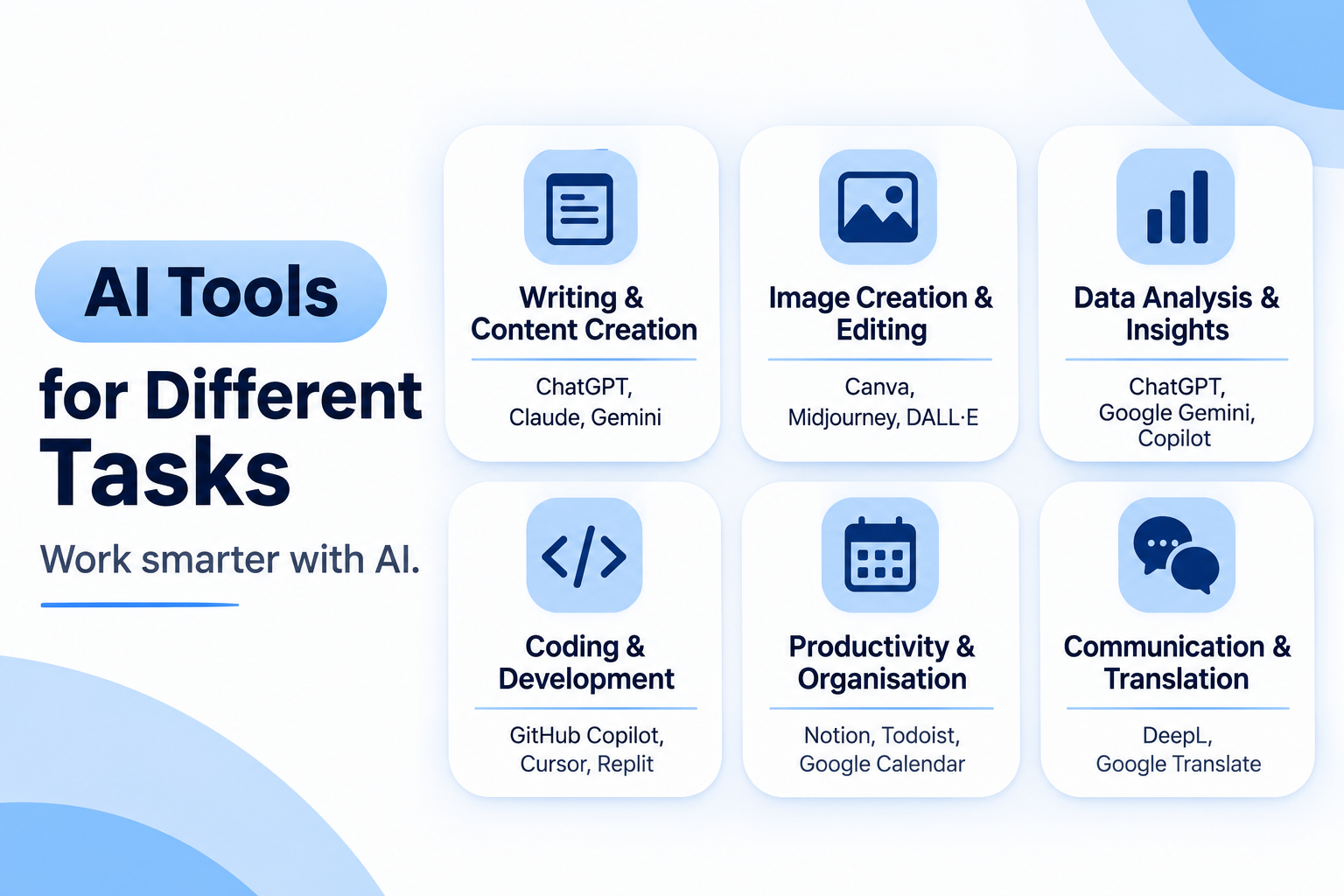
Which AI Tool Should You Use For Which Purpose?
This guide is different helps you decide which tool to use for a particular task you need AI assistance. For each tool, I explain what it does well, a realistic way to use it, and where it lets you down. The tools are grouped by the job you’re trying to get done, because the best AI tool is the one that fits a task you already do every week.
Two things to keep in mind before you start. First, AI tools change fast. Features, free plans and prices shift often, so check each tool’s own website before you commit. Second, you don’t need all twenty. Most people get real value from two or three.
How to think about AI tools
AI tools fall into three broad types, and knowing which type you need saves a lot of trial and error.
- Assistants (chat-based tools like ChatGPT, Gemini and Claude). You give instructions in plain language and they write, explain, summarise or analyse. They are flexible, but you must check their work.
- Specialists (tools built for one job, like Remove.bg, ElevenLabs or Grammarly). They do one thing well and need little prompting.
- Built-in features (AI added to apps you already use, like Canva, Notion and Microsoft Copilot). They are convenient because they work where your files already live.
Use a specialist when one exists for your task
An assistant when the task is open-ended, and
A built-in feature when you want to stay inside your usual app.
Part 1: Research and everyday assistants
1. ChatGPT
ChatGPT is the most widely known general-purpose assistant. You can ask it to explain a concept, draft an email, summarise an article, plan a project or talk through a problem step by step.
How to use it well:
Give it context. Instead of “write a cover letter,” say who you are, the role, the tone you want and the points to include. Then ask it to revise. The first answer is rarely the best one.
Watch out for: It can sound confident while being wrong, especially on facts, figures and recent events. Verify anything important.
Best for: Drafting, studying, brainstorming and general problem-solving.
2. Google Gemini
Gemini is Google’s assistant. It can handle text, images and more, and it connects with Google apps such as Gmail, Docs and Drive, which makes it useful if your work already runs on Google.
How to use it well: Use it for tasks that touch your Google content, such as summarising a long email thread or drafting a document from your notes, once you have checked what access you are giving it.
Watch out for: Features differ by account type and region, so what you see may not match what others describe.
Best for: Research and people who work mainly in Google’s apps.
3. Perplexity AI
Perplexity works like a search engine that answers in full sentences and shows the sources behind each answer. Having sources attached makes it faster to check a claim than with most chat tools.
How to use it well: Use it as a starting point for research, then open the sources it lists and read the important ones yourself.
Watch out for: A cited source is not automatically a good source. Always judge the quality of what it links to.
Best for: Research, studying and following news and trends.
4. Claude
Claude is an assistant that handles long documents well, which suits detailed writing, analysis and summaries. You can give it a long report and ask for the key points, risks or a plain-language explanation.
How to use it well: Paste in a long document and ask specific questions rather than “summarise this.” For example, “list every deadline mentioned and who is responsible.”
Watch out for: Like every assistant here, it can make mistakes. Check numbers and quotes against the original.
Best for: Professional writing, analysing documents and complex research.
Part 2: Writing and language
5. Grammarly
Grammarly checks grammar and spelling and suggests clearer wording as you write. It also gives feedback on tone, which helps with emails and professional messages.
How to use it well: Treat its suggestions as options, not orders. Accept the fixes that make your meaning clearer and ignore the ones that flatten your voice.
Watch out for: Over-accepting suggestions can make your writing sound generic.
Best for: Emails, reports and anyone writing in a second language or a formal setting.
6. DeepL
DeepL translates text, documents and web pages, and aims to keep the meaning natural rather than translating word for word. It is a good option when you need to read or write across languages.
How to use it well: Translate, then read the result back. If the translated text will be sent to a client or published, have a fluent speaker review it.
Watch out for: Specialist vocabulary, such as legal or technical terms, may need a human check.
Best for: Study, work and multilingual communication.
Part 3: Design and images
7. Canva AI
Canva has added AI features to its design platform, so you can create posters, presentations and social media graphics from templates without design training.
How to use it well: Start from a template that matches your format, then use the AI features to speed up drafts, such as generating layouts or text. Keep a consistent set of fonts and colours across everything you make.
Watch out for: Popular templates are widely used, so customise them if you want your brand to stand out.
Best for: Beginners, small businesses and content creators.
8. Midjourney
Midjourney generates detailed, realistic images from text descriptions, in many art styles. It is popular with designers and creators who want striking visuals.
How to use it well: Describe the subject, style, lighting and mood. Small changes to the prompt can change the result a lot, so expect to try several versions.
Watch out for: Check the current licensing and usage terms before using generated images commercially, and check how to access it, as this has changed over time.
Best for: Creative projects and concept visuals.
9. Leonardo AI
Leonardo AI creates images, logos and game-style artwork, and offers a free plan so you can try it before paying.
How to use it well: Use it to explore logo ideas or social graphics, then refine the best option in a design tool.
Watch out for: Free plans usually come with limits, so check what they include now. Generated text inside images is often unreliable, so add text yourself in Canva.
Best for: Logos, social media graphics and creative experiments.
10. Remove.bg
Remove.bg removes the background from a photo automatically, in a few seconds.
How to use it well: Use it for product photos, profile pictures and thumbnails. Start with a well-lit photo that has a clear subject, since cluttered backgrounds are harder to cut out cleanly.
Watch out for: Free downloads may be lower resolution than paid ones, so check this if you need print-quality images.
Best for: Product photos, profile pictures and quick design work.
Part 4: Video, voice and screen recording
11. CapCut
CapCut is a video editor with AI features such as automatic captions, background removal, effects and music. Captions matter because many people watch short videos without sound.
How to use it well: Record, auto-generate captions, then correct any mistakes, especially names and technical terms.
Watch out for: Auto-captions are not perfect, so always proofread them.
Best for: Short videos like Reels and Shorts.
12. ElevenLabs
ElevenLabs turns text into natural-sounding speech in multiple languages, and has a free plan. It is useful when you need a voiceover but don’t want to record one yourself.
How to use it well: Write your script the way people speak, with short sentences, then listen and adjust. Punctuation changes how the voice reads.
Watch out for: Don’t clone or imitate someone’s voice without their permission. Check the licence for commercial use.
Best for: Voiceovers for videos and podcasts.
13. HeyGen
HeyGen creates videos with realistic talking AI avatars in multiple languages. It can produce training and presentation videos without a camera.
How to use it well: Use it for repeatable content, such as onboarding or product explainers, where a clear script matters more than personality.
Watch out for: Viewers can find avatars impersonal. Be transparent that the presenter is an AI avatar.
Best for: Training content, presentations and business videos.
14. Pika
Pika turns text prompts or still images into short AI-generated video clips with creative effects.
How to use it well: Use it for short, eye-catching clips such as intros, backgrounds or social posts, and expect to generate several versions.
Watch out for: The clips are short, and motion and detail can look odd, so review them closely before posting.
Best for: Social media content and creative video ideas.
15. Loom
Loom records your screen, and optionally your camera, then gives you a link to share straight away.
How to use it well: Replace a long email or a meeting with a three-minute recording. It works well for tutorials, feedback and explaining a process.
Watch out for: Check your screen for private information before recording.
Best for: Tutorials, quick explanations and remote teams.
Part 5: Productivity and presentations
16. Notion AI
Notion is a workspace for notes, tasks, project plans and templates, and Notion AI adds writing and summarising help inside it.
How to use it well: Keep your notes and projects in Notion, then use the AI to summarise meeting notes or turn rough ideas into a plan.
Watch out for: It works best if your information is already organised there. Check what is included in your plan.
Best for: Planning work, study and personal organisation.
17. Gamma
Gamma builds presentations with AI. You give it a topic or outline and it creates modern slides that you can then edit.
How to use it well: Give it a clear outline instead of a vague topic, then edit the text so the slides reflect your real points.
Watch out for: AI-generated slides can look polished while saying very little. Check every claim and add your own insight.
Best for: Students and professionals who need slides quickly.
18. Microsoft Copilot
Copilot is Microsoft’s AI assistant for Windows and Office. It works with Word, Excel and PowerPoint, and can summarise documents and help analyse data in Excel.
How to use it well: In Excel, ask it questions about your data in plain language, then check the results yourself. In Word, use it to summarise or restructure a draft.
Watch out for: Some features may need a paid Microsoft plan, so check what your account includes.
Best for: People who already work in Microsoft Office every day.
19. Tldraw
Tldraw is a digital whiteboard for sketching ideas, diagrams, flowcharts and mind maps, with real-time collaboration.
How to use it well: Use it to map a process or plan a project visually before you build it, especially with a team.
Watch out for: Whiteboards get messy quickly, so keep each board focused on one topic.
Best for: Visual brainstorming and team planning.
20. TinyWow
TinyWow is a set of free file tools. You can merge and split PDFs, convert file types, and resize or compress images, with no sign-up needed.
How to use it well: It’s handy for quick jobs, such as combining several PDFs into one for an application.
Watch out for: Don’t upload confidential files, such as IDs, contracts or financial documents, to free online tools. For sensitive documents, use software on your own device.
Best for: Quick everyday file jobs.
A few rules for using AI tools well
- Check the output. AI can be wrong in a confident tone. Treat its work as a first draft, and verify names, numbers and claims.
- Protect private information. Don’t paste passwords, client data, confidential documents or personal details into AI tools unless you know how the tool handles your data.
- Be open about it. If AI produced part of your published work, such as images or voiceovers, say so where it matters.
- Check the licence. Before using generated images, audio or video commercially, read the tool’s current terms.
- Keep your own voice. AI can speed up the first draft, but your experience and judgement are what make the work yours.
Which tools to start with
If you do a lot of research: Perplexity plus Gemini or ChatGPT
If you write often: Grammarly plus ChatGPT or Claude
If you create content: Canva, CapCut and ElevenLabs
If you work in teams or manage projects: Notion AI, Loom and Tldraw
If you live in Microsoft Office: Copilot and Gamma