
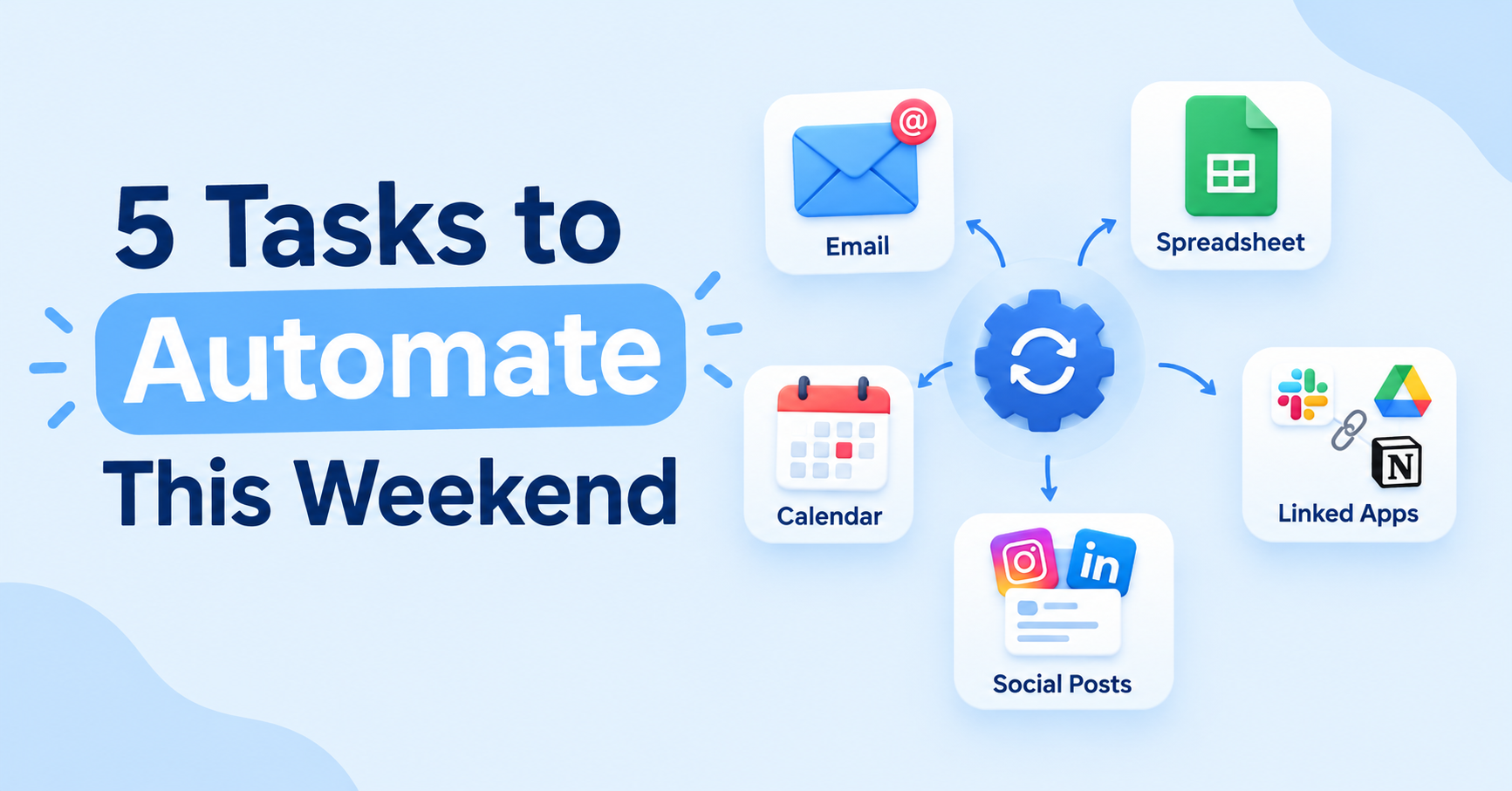
5 Tasks You Can Automate This Weekend (No Code Needed)
Most of us lose a surprising amount of time to small, repetitive jobs: sorting email, copying form responses into a spreadsheet, remembering to post, chasing the same reminders every week. None of them is hard, but together they eat hours. The good news is that you don’t need to write code to automate them. Many of the tools you already use have automation built in, and a few more connect your apps together with simple “if this happens, do that” rules.
Here are five tasks you can set up in a weekend. Start with one, get it working, then move to the next.
Before you start: a quick rule:
Do the task by hand once and write down each step. If you can describe the steps clearly, you can automate them. If you can’t, the task probably needs a clearer process first, and automating a messy process only makes the mess faster.
1. Sort your email automatically
Your inbox is a good place to begin because the tools are already there. Gmail’s filters and labels can sort messages as they arrive, based on the sender, subject words or attachments.
- Create a label for each type of mail you handle regularly, such as invoices, newsletters or job alerts.
- Set a filter that applies the label automatically and, for low-priority mail, skips the inbox.
- Use a filter to star or flag messages from the people who matter most.
Time saved: A few minutes every day, plus less distraction.
Watch out for: Filters that hide important mail. Check your labels for the first week to make sure nothing is being buried.
2. Send form responses straight into a spreadsheet
If you collect information from people, whether sign-ups, feedback or requests, don’t copy it across by hand. Google Forms can send each response directly into a Google Sheet.
- Build your form and link it to a spreadsheet from the Responses tab.
- Turn on email notifications so you know when a new response arrives.
- Add a “Status” column in the sheet so you can track what you have already handled.
Time saved: Every copy-and-paste session you would otherwise do.
Watch out for: Changing question wording after launch, which can create messy columns. Finalise your questions first.
3. Set up recurring reminders and a weekly review
If you do something every week, such as invoicing, backing up files or planning, it shouldn’t depend on your memory.
- Create recurring events in Google Calendar for each routine task.
- Add a notification for each event, so the reminder reaches you before the task is due.
- Use Google Tasks or a similar to-do app for recurring checklists.
Time saved: Less mental load, and fewer missed deadlines.
Watch out for: Too many reminders. If you start ignoring them, cut back to the ones that matter.
4. Schedule your social media posts in advance
Writing posts in one batch and scheduling them is far more efficient than posting live every time. Many platforms, including LinkedIn, let you schedule posts natively. Tools like Buffer also let you manage several accounts in one place.
- Set aside one block each week to write all your posts.
- Schedule them for the times your audience is most active.
- Keep a simple content list in a spreadsheet so you don’t run out of ideas.
Time saved: Daily “what should I post?” decisions.
Watch out for: Posting on autopilot. Check comments and replies regularly, because scheduling doesn’t replace engaging with people.
5. Connect your apps with Zapier, Make or similar tools
This is where automation gets more powerful. Tools like Zapier and Make connect different apps, so an action in one triggers an action in another. For example:
- When a new response arrives in a form, send yourself a message and add a row to a tracker.
- When an email with an attachment arrives, save the file to a cloud folder.
- When a new row is added to a spreadsheet, send a confirmation email.
Start with one simple connection, test it with sample data, and only then switch it on for real.
Time saved: Hours of manual moving between apps.
Watch out for: Free plans have limits that can change, so check the current limits on the tool’s pricing page before you rely on it.
How to choose where to start
Pick the task that annoys you most and happens most often. Begin there, because the payoff is immediate and it keeps you motivated. Once one automation is working, the next is easier.